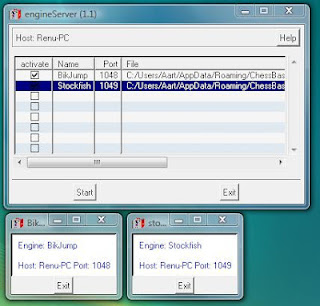
I have received several questions on how to connect Chess for Android running on an Android device (e.g. a phone) as client to a remote chess server (e.g. a powerful desktop), so I decided to write a small document with detailed instructions. What you will need: The server software from Bernhard Wallner's chess utilities , suited for your server's operating system (if, say, your desktop runs Windows, you will need to download the Windows version). You do not need to download the client software in this case. The network enabled version of Chess for Android . On the server, start the engine server software, and construct a new row for every engine you want to run remotely. Assign a name, port number, and select the full path to each engine binary (an executable that runs on the server). You can also supply command line options for starting the engine. Check the active checkboxes and click start when done. This yields something similar to the screenshots below. Here, I have s...
After all the fun I had connecting Chess for Android with the Millennium over Bluetooth, I was curious if I could provide similar support for the DGT electronic chess boards. Some of these have Bluetooth capabilities, most use USB connections, and some older models, like the one I have, still use the RS-232 connector. To my pleasant surprise, by combining the original serial cable of DGT with a USB-to-serial cable and a female-USB-to-USB-C cable, I was able to get an actually working connection between my DGT board and my tablet or phone. Next was implementing support in Chess for Android. Luckily, DGT kindly shared the protocol documentation with me, and after a fun weekend of hacking, Chess for Android now proudly supports DGT electronic chess boards as well.
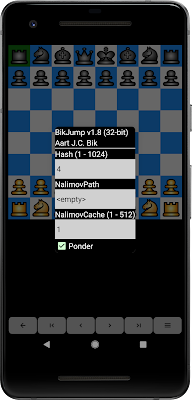
The UCI engine setup dialog in Chess for Android was developed a long time ago when there were not many chess engines available for Android. As a result, I opted for a simple dialog that featured a few, commonly used UCI engine options only (such as hash table size, number of threads, endgame tablebases). However, the options that I picked almost ten years ago no longer serve the wide variety in options of the many chess engines available for Android. Therefore, I decided to re-implement the UCI engine setup and do what the UCI protocol specification actually intended: the GUI should parse all options and build a dialog that allows the user to change them. For engines with only a few options, this yields a concise dialog, as illustrated below with BikJump v1.8. For engines with many options, this yields a more elaborate, scrollable dialog, as illustrated below for Leela Chess Zero. In any case, however, the new implementation gives the user full access to all options! Expect...


Comments